
The Acorn · Source protection and triage
Acorn forensic write blocker and triage tools
Review Acorn’s kernel-enforced write protection, mount supported volumes and produce directory reports. Add hashes or keyword checks when a file listing needs closer triage.
Development preview · release planned for Q1 2027. The guide covers the current protection, reporting and credential-based access paths.
At a glance
- Control source access: review the device and use the supported read-only workflow before browsing.
- Choose the depth of triage: create a directory listing, add hashes or include keyword and heuristic checks.
- Keep reviewable outputs: export CSV, an optional formatted workbook and a report receipt to a separate destination.
- Use the right companion tool: continue to the Imager for acquisition and its device-health workflow.
Kernel-enforced, OS-level source protection
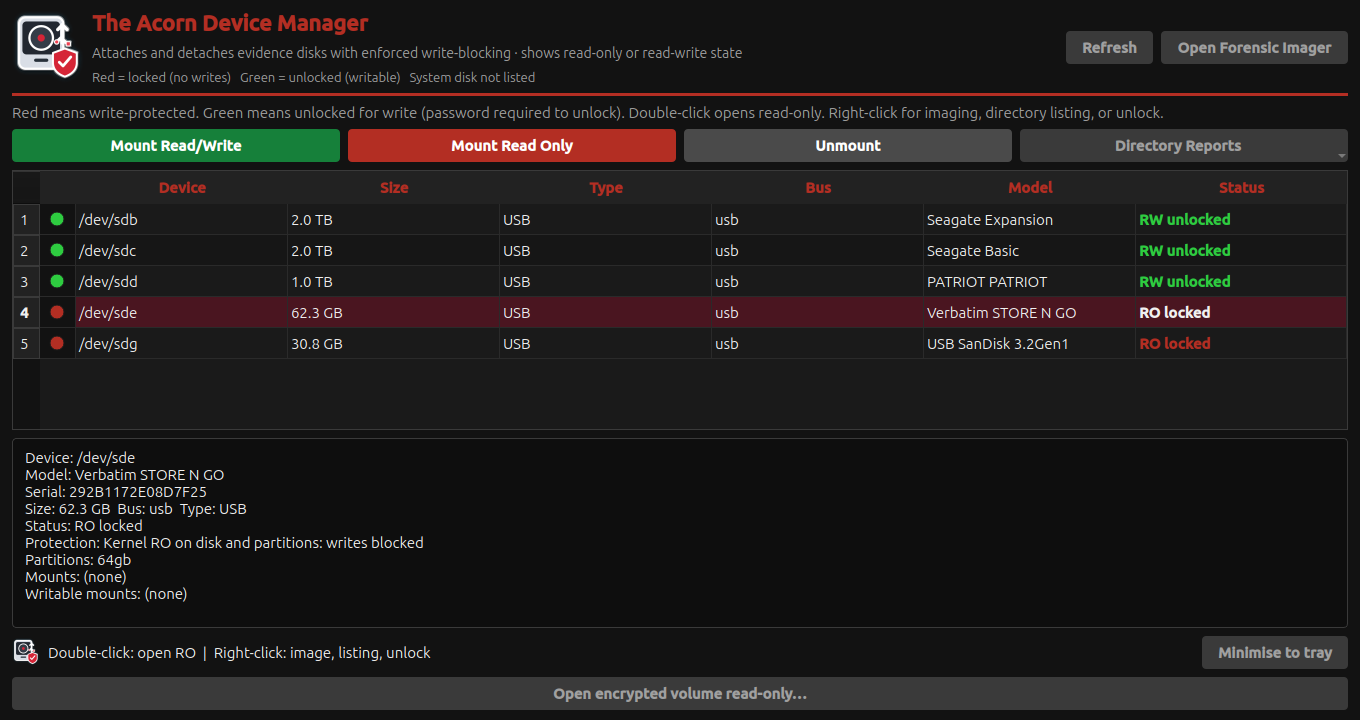
Device Manager shows source devices, their read-only state and supported mount actions. Directory reports require a read-only source mount and a separate output destination.
Acorn sets and verifies the Linux kernel’s block-device read-only state. OS services apply the policy at startup, react to device connections and repeat protection checks. Controlled mount actions and separate output-disk permissions complete the workflow.
Kernel block layer
Supported source devices and partitions are placed in read-only state. The running system and explicitly approved output disks are handled separately.
OS protection guard
The guard checks the reported state and blocks guarded evidence operations when validation fails. Device Manager makes the state visible to the examiner.
Controlled access
Read-only mounts use filesystem-specific options. Writing to an output disk requires its separate designation and permission.
Establish protection before access: changing a read-only flag does not make an existing writable session safe. Verify the device and mount state before acquisition, and use hardware isolation where the examination method requires it.
For a physical image, continue to the Forensic Imager guide. A directory survey records accessible files within its selected scope.
Choose a directory report
Mount the supported volume read-only and confirm the source and output locations. Choose a listing, hashes or keyword checks.
| Report level | What it adds | When it is useful |
|---|---|---|
| Directory listing | An inventory of files and directories within the selected mounted scope. | Establish what is accessible and decide which folders or file groups need closer examination. |
| Listing with hashes | MD5, SHA-1 and SHA-256 calculations, with checks against enabled hash sets. | Compare file content with known sets and retain identifiers for later review or hand-off. |
| Keyword and heuristic triage | Filename/content keyword checks and automatic review tags alongside the report records. | Narrow a large listing to candidate files that deserve further examination. |
Device Manager uses filesystem-specific mount options to avoid journal replay or recovery writes where supported. The policy covers NTFS, ext2/3/4, XFS, Btrfs and F2FS, with separate FAT/exFAT options. An unsupported driver or damaged source may prevent mounting.
Reports cover files exposed by the mounted filesystem, not all deleted or unallocated material. Hashing and content checks read more data than a listing, so consider source condition when choosing the report depth.
Keyword, hash and heuristic results
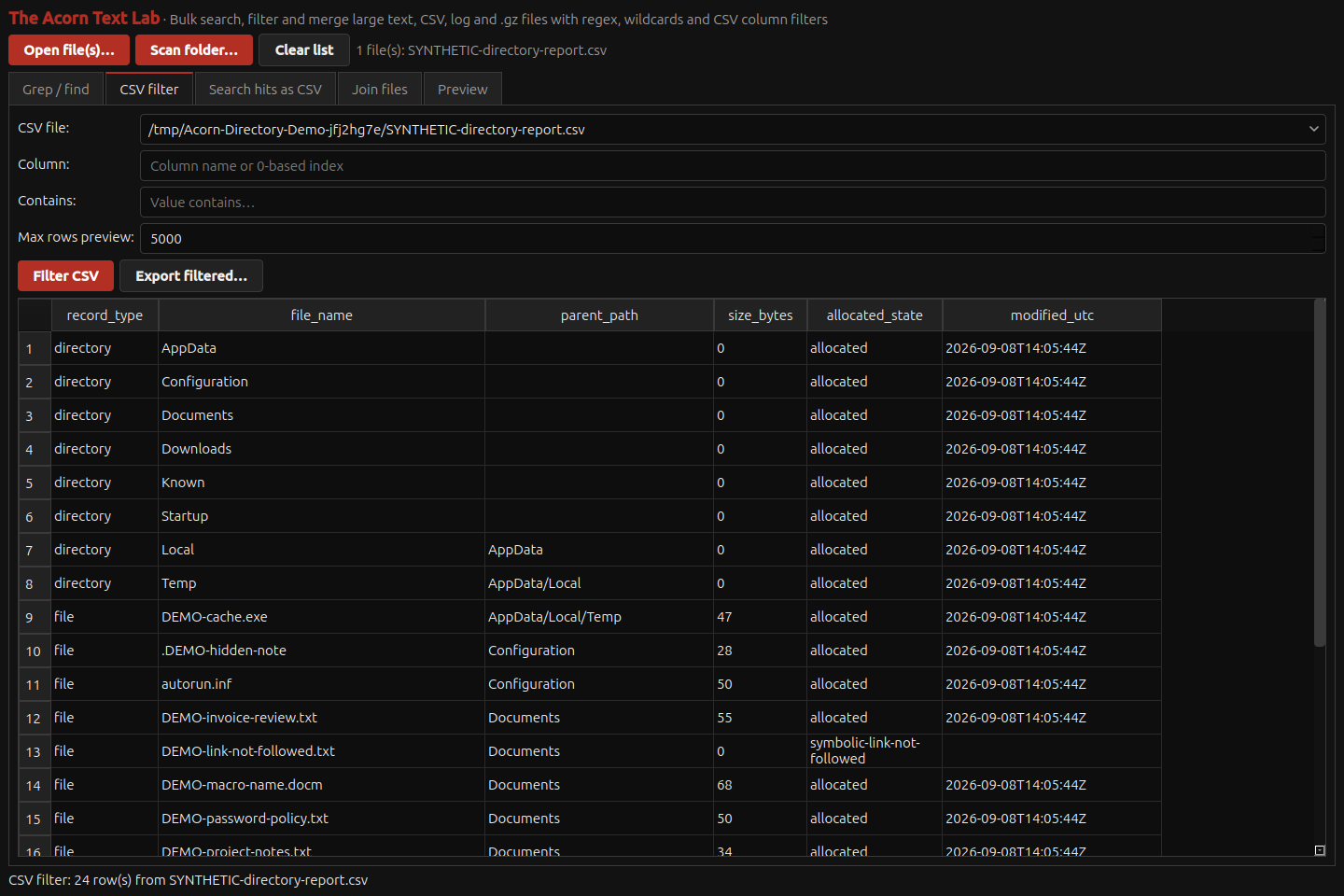
Use the result columns to see which filename, content term or hash set produced a match, then inspect the corresponding file.
| Check | What to look for | Limit to keep with the result |
|---|---|---|
| Filename keywords | Case-insensitive matches within filenames. | Check whether the name reflects the file’s actual contents. |
| Content keywords | Text matches within the first 16 MiB of each file, decoded as UTF-8. | No Office/PDF parsing, OCR or archive expansion; undecodable bytes are ignored. |
| Hash-set checks | Matches in enabled indexed sets and the configured baseline. | Interpret each set by its source and purpose. UNKNOWN is not a safety verdict. |
| Heuristic tags | Rules for hidden names, right-to-left override characters, double extensions, executable names and selected paths. | These are review leads. A macro-enabled extension does not prove a macro is present. |
Keyword lists accept up to 5,000 distinct terms of 4–256 characters. Hashing reads the whole file; incomplete reads are recorded rather than reported as complete hashes.
Review the tags and keep a CSV record
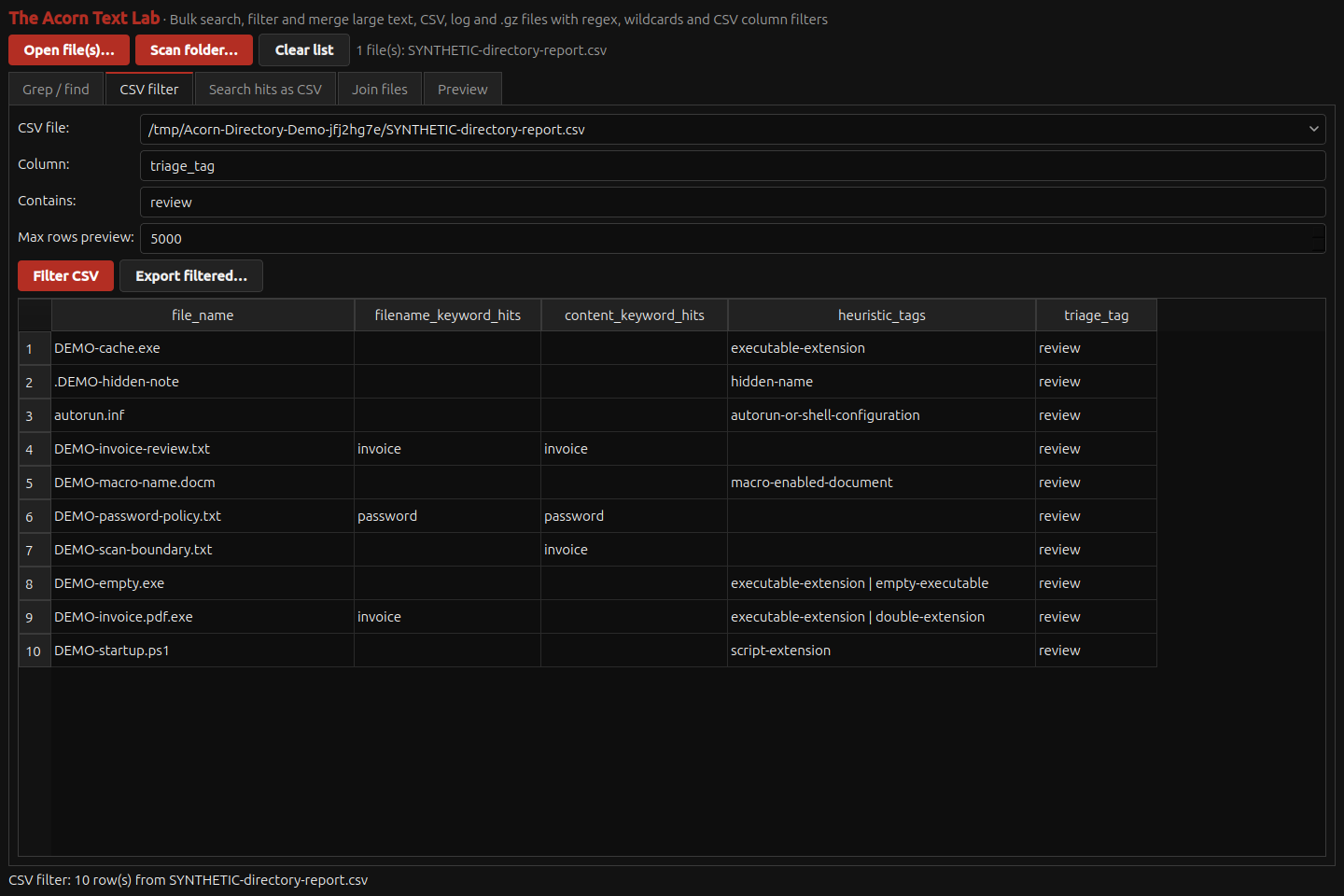
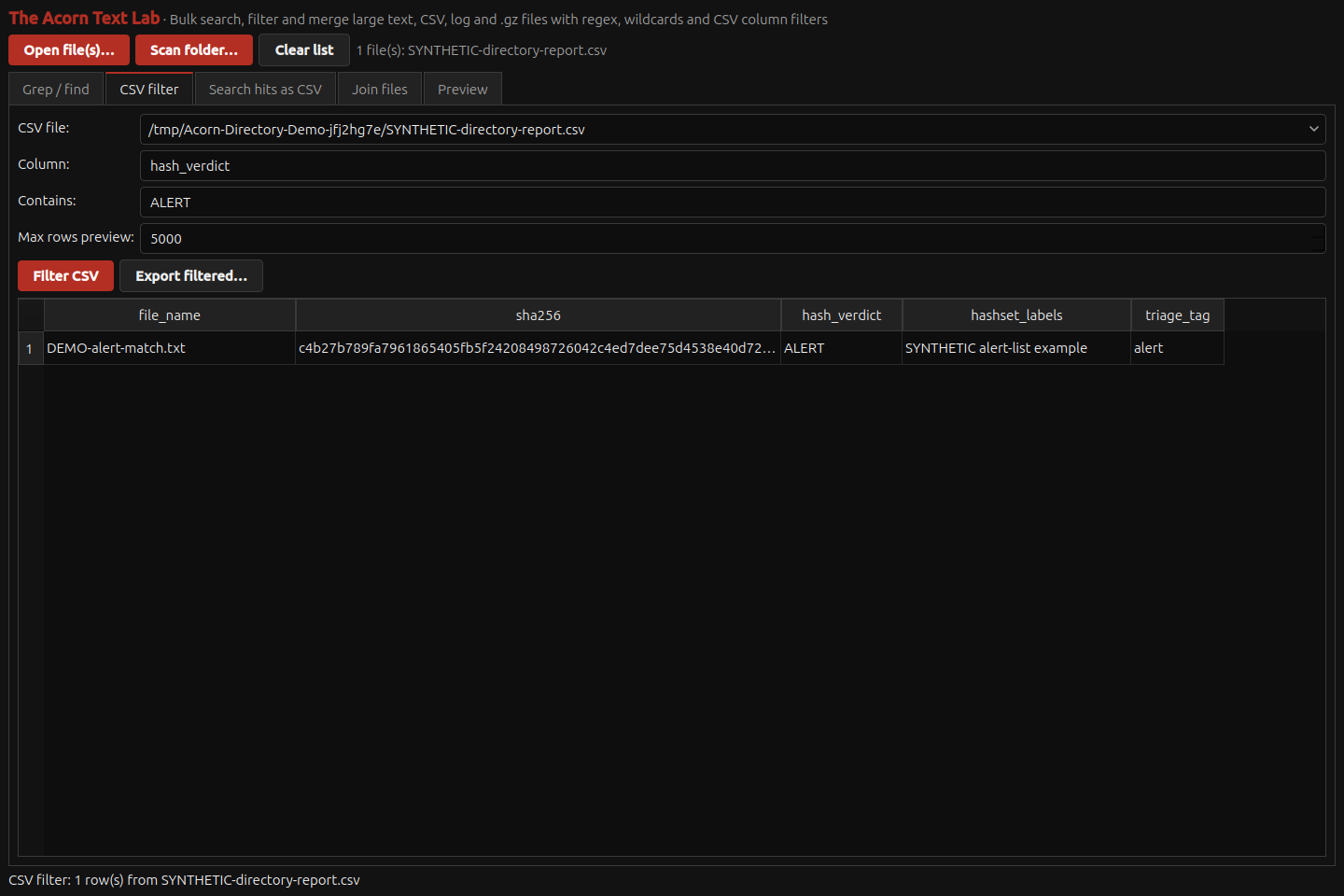
When the report finishes, Device Manager opens its output folder. Review the CSV in Text Lab or a spreadsheet: it retains paths, file details, times, hashes, matches and an overall tag. Optional XLSX adds filters and frozen headings; the JSON receipt records settings, coverage, warnings and output hashes.
The automatic tags alert, known and review summarise the checks. Read the individual result columns too: a known-good tag can coexist with heuristic hits. Keep later review decisions in a working copy or case notes; Device Manager has no manual per-file tag editor.
Examine a matching file
Open a candidate in the appropriate event-log, registry or browser viewer, retaining its path and source reference.
Access to supported encrypted volumes
The following routes use existing lawful passwords, keys or recovery credentials. Support depends on the volume format and installed backend.
| Encryption family | Supported route | Practical boundary |
|---|---|---|
| LUKS | Access using an available passphrase or supported key material. | Container version, credentials and installed tooling must be suitable for the source. |
| BitLocker | Access using supported existing password or recovery credentials. | A locked volume still requires the appropriate credentials and a supported backend. |
| VeraCrypt / TrueCrypt | Use the supported credential-based volume access workflow. | Confirm the container, credential requirements and installed backend before planning the examination. |
| Legacy FileVault | Support is limited to the older Core Storage/HFS+ workflow. | This is not APFS FileVault support or universal access to current Macs. |
Unlocking and mounting are separate steps. Confirm the resulting read-only state and accessible scope before reporting.
Device information and disk health
Device Manager displays identity information, not a SMART/NVMe health dashboard or self-test control. The Imager provides the related health workflow; unavailable information leaves the condition unknown.
For unstable sources, assess faulty-disk imaging or specialist recovery before a lengthy file-hash or content scan.
What to record with the report
- Source protection: verify the selected device, read-only mount and separate output before work begins.
- Coverage: retain the selected directory scope, keyword/hash settings, scan limits and any errors or skipped files.
- Interpretation: examine significant matches and preserve the context behind an automatic tag.
- Hand-off: retain the original CSV, any workbook, receipt and notes alongside the relevant acquisition records.
For the complete suite view, return to all apps in Acorn Home. The digital forensics glossary explains terms used throughout these guides.
Discuss an Acorn demonstration
For current release details, a demonstration or support for a specific source, speak to Squirrel Forensics. Alistair Ewing is a co-founder and co-developer of The Acorn. Compute Forensics provides independent forensic casework, with methods selected for the evidence and the agreed instruction.