
The Acorn · App directory
Acorn forensic apps and screenshots
Find an Acorn app for collection, file review, artefact analysis or reporting. Open the screenshots to inspect example records.
Development preview · release planned for Q1 2027. See the platform overview for the wider workflow, or visit Squirrel Forensics for demonstrations and release updates.
Screen examples
Browse the screen examples
Follow transfer counters, browser activity, Windows events and file changes into their supporting records. The examples use public training datasets and clearly identified demonstrations.
The whole catalogue
All apps in Acorn Home
Browse all 53 launcher entries in seven categories. The complete screenshot includes entries below the normal window viewport; the same names are listed below.
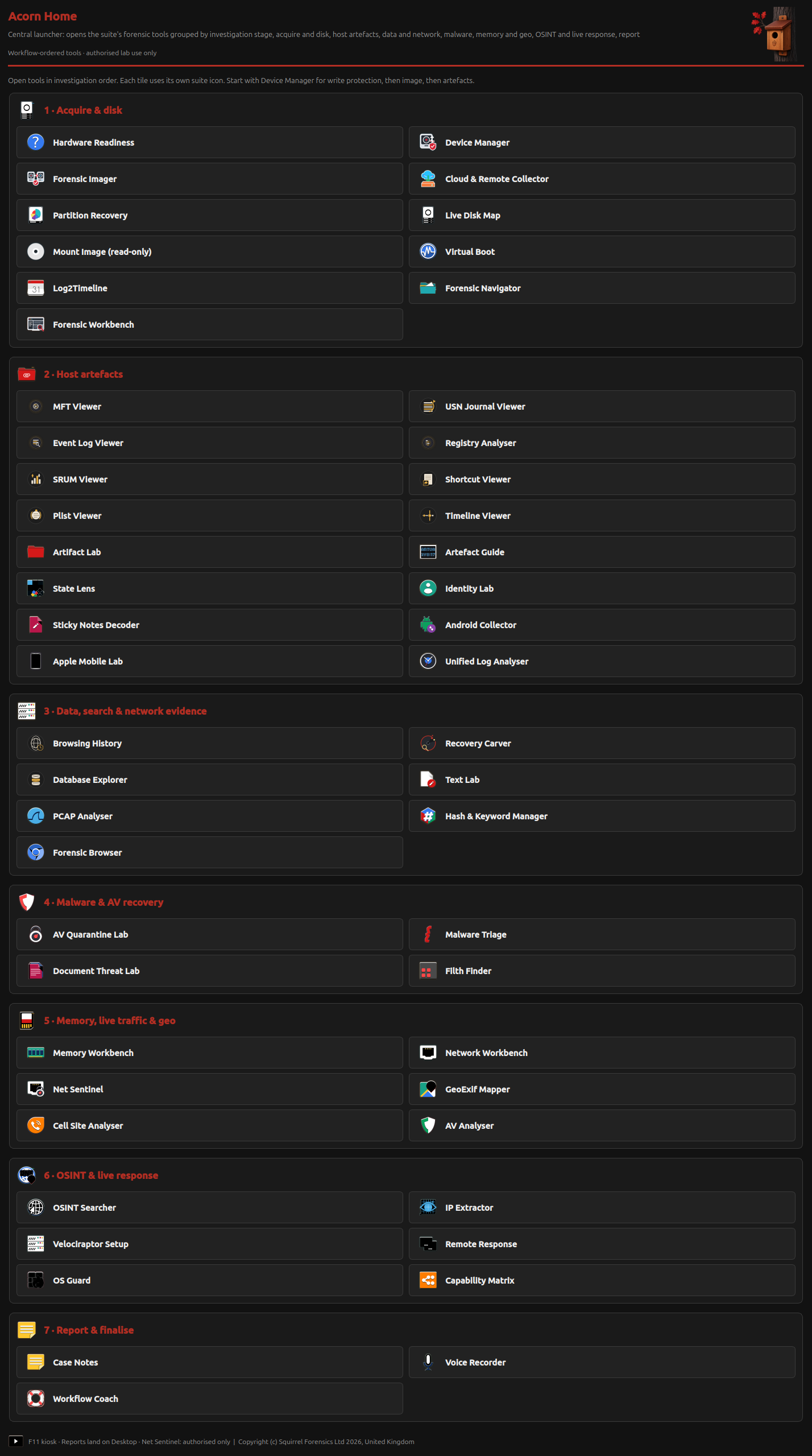
Acquire & disk 11 entries
- Hardware Readiness
- Device Manager
- Forensic Imager
- Cloud & Remote Collector
- Partition Recovery
- Live Disk Map
- Mount Image (read-only)
- Virtual Boot
- Log2Timeline
- Forensic Navigator
- Forensic Workbench
Host artefacts 16 entries
- MFT Viewer
- USN Journal Viewer
- Event Log Viewer
- Registry Analyser
- SRUM Viewer
- Shortcut Viewer
- Plist Viewer
- Timeline Viewer
- Artifact Lab
- Artefact Guide
- State Lens
- Identity Lab
- Sticky Notes Decoder
- Android Collector
- Apple Mobile Lab
- Unified Log Analyser
Data, search & network evidence 7 entries
- Browsing History
- Recovery Carver
- Database Explorer
- Text Lab
- PCAP Analyser
- Hash & Keyword Manager
- Forensic Browser
Malware & AV recovery 4 entries
- AV Quarantine Lab
- Malware Triage
- Document Threat Lab
- Filth Finder
Memory, live traffic & geo 6 entries
- Memory Workbench
- Network Workbench
- Net Sentinel
- GeoExif Mapper
- Cell Site Analyser
- AV Analyser
OSINT & live response 6 entries
- OSINT Searcher
- IP Extractor
- Velociraptor Setup
- Remote Response
- OS Guard
- Capability Matrix
Report & finalise 3 entries
- Case Notes
- Voice Recorder
- Workflow Coach
Home includes apps, setup helpers and workflow shortcuts. The task tables group related entries and describe what each one handles.
Apps by task
This preview was checked against the development build on 8 September 2026. Choose a task below to compare its tools, inputs and outputs.
Examples use documented public training material or generated test records. Each caption identifies its source. Select an image for a larger view.
Acquisition, access and recovery
Choose a source-access, acquisition or recovery tool for the material you have.
Read the detailed guides to Acorn write protection and triage and the Forensic Imager and recovery workflows.
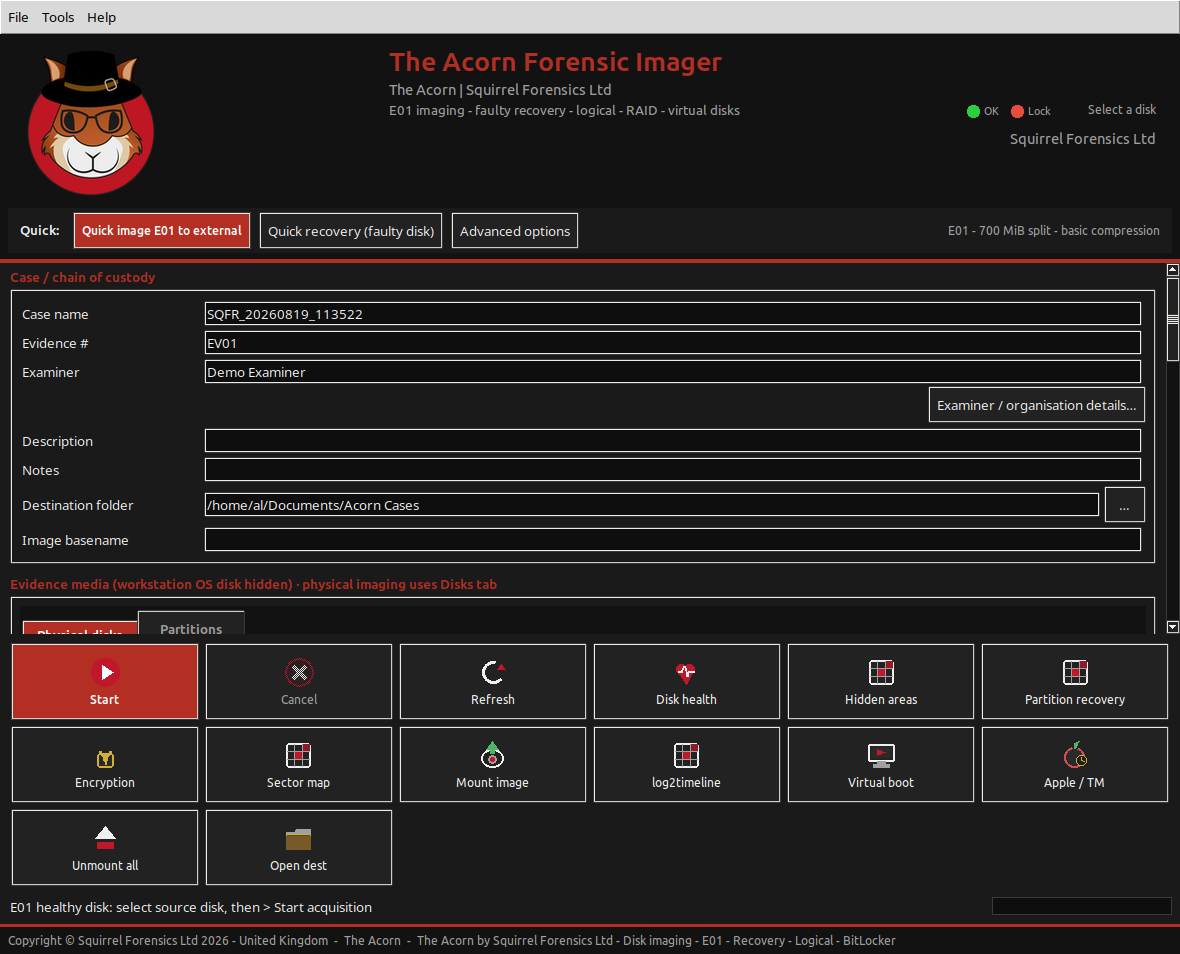
Forensic Navigator: preview a file in its surrounding collection
Select a file in the evidence tree and inspect its supported preview alongside the source location. Use the specialist-viewer menu when it needs closer analysis.
Retain the original file and metadata when reporting what a preview shows. A shortcut, for example, records a reference rather than proving its target was opened.
| App | What it helps you do | Sources and limits |
|---|---|---|
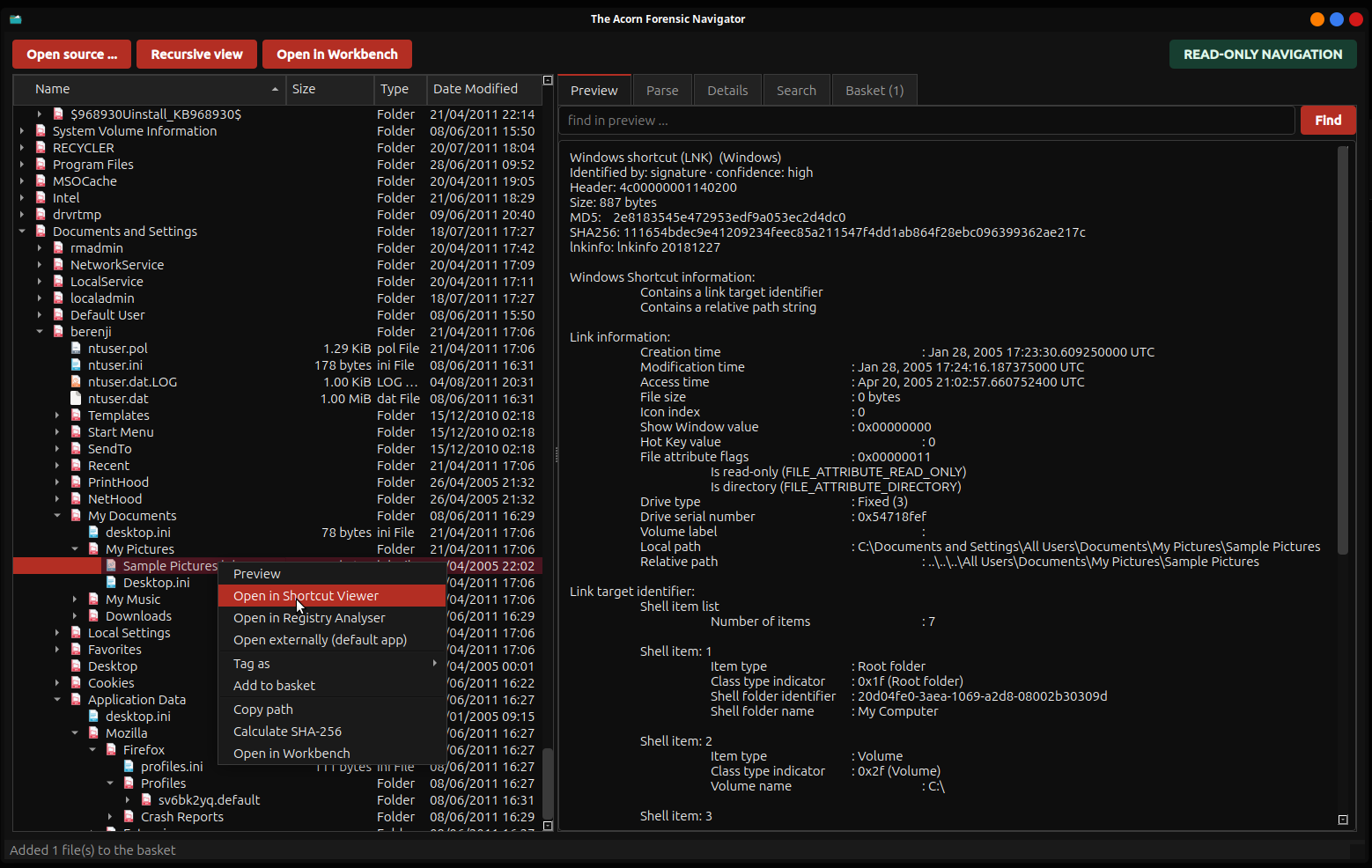
| Forensic Imager | Create forensic images or selected collections with hashes, logs and acquisition records. | Healthy storage, unstable media and supported logical collections. Destination and source checks do not replace device-specific qualification; unreadable sectors must be recorded. |
| Device Manager | See the observed protection state and make protect, unlock and imaging actions deliberate. | Attached non-system storage. Kernel-enforced read-only state, coordinated by Acorn’s OS services and mount controls. Establish and verify protection before examining a source. |
| Image Mount | Open an examination path through supported images without treating the evidence as writable workspace. | Supported evidence containers and virtual disks. Container, encryption and filesystem support vary; a derived conversion may be needed. |
| Partition Recovery | Locate candidate partition structures and export an exact byte range to a new destination. | Raw images, supported containers and block sources. A candidate is not a repaired filesystem; exported results require validation. |
| Live Disk Map | Show which areas have been read, remain untried or have failed during recovery imaging. | Recovery map files. A map describes acquisition progress; it does not prove that recovered files are intact. |
| Recovery Carver | Recover candidate files and fragments to separate working storage for review. | Images and supported disk regions. Signature carving can recover candidates from unallocated space or slack. Missing fragments and original names require review. |
Files, databases and search
Use Workbench or Navigator for a collection, then a focused viewer for a database, text file or browser record.
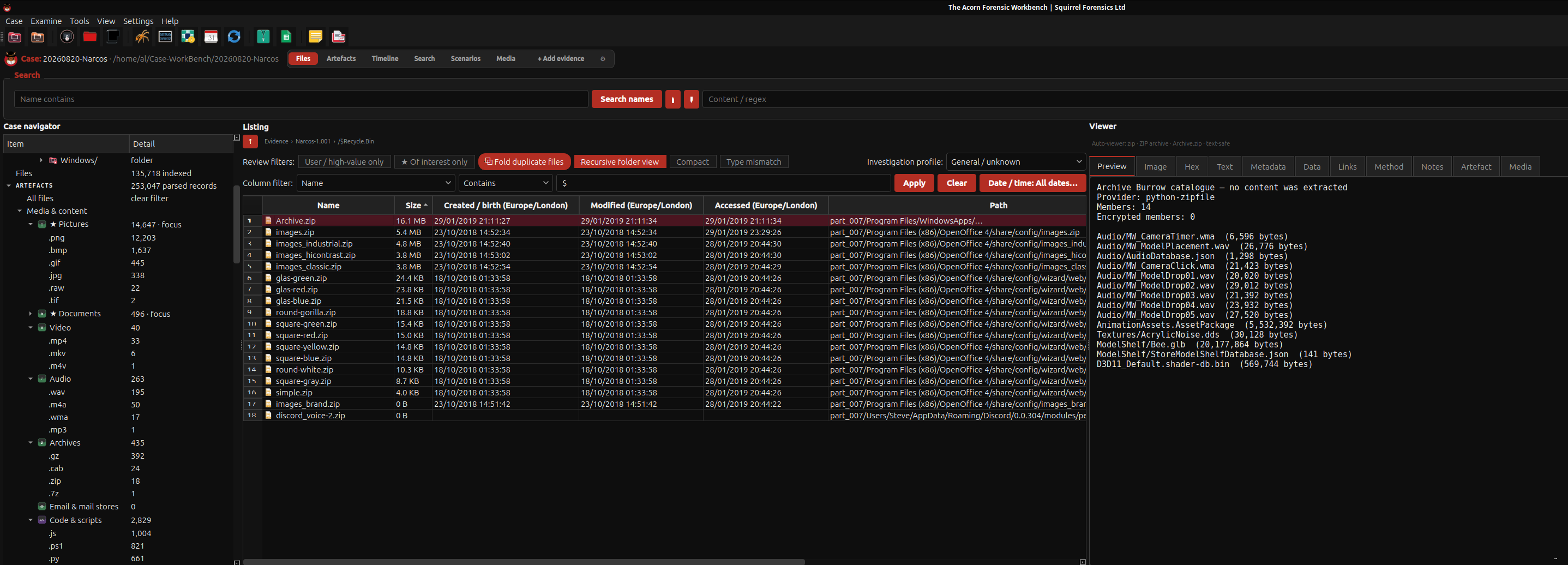
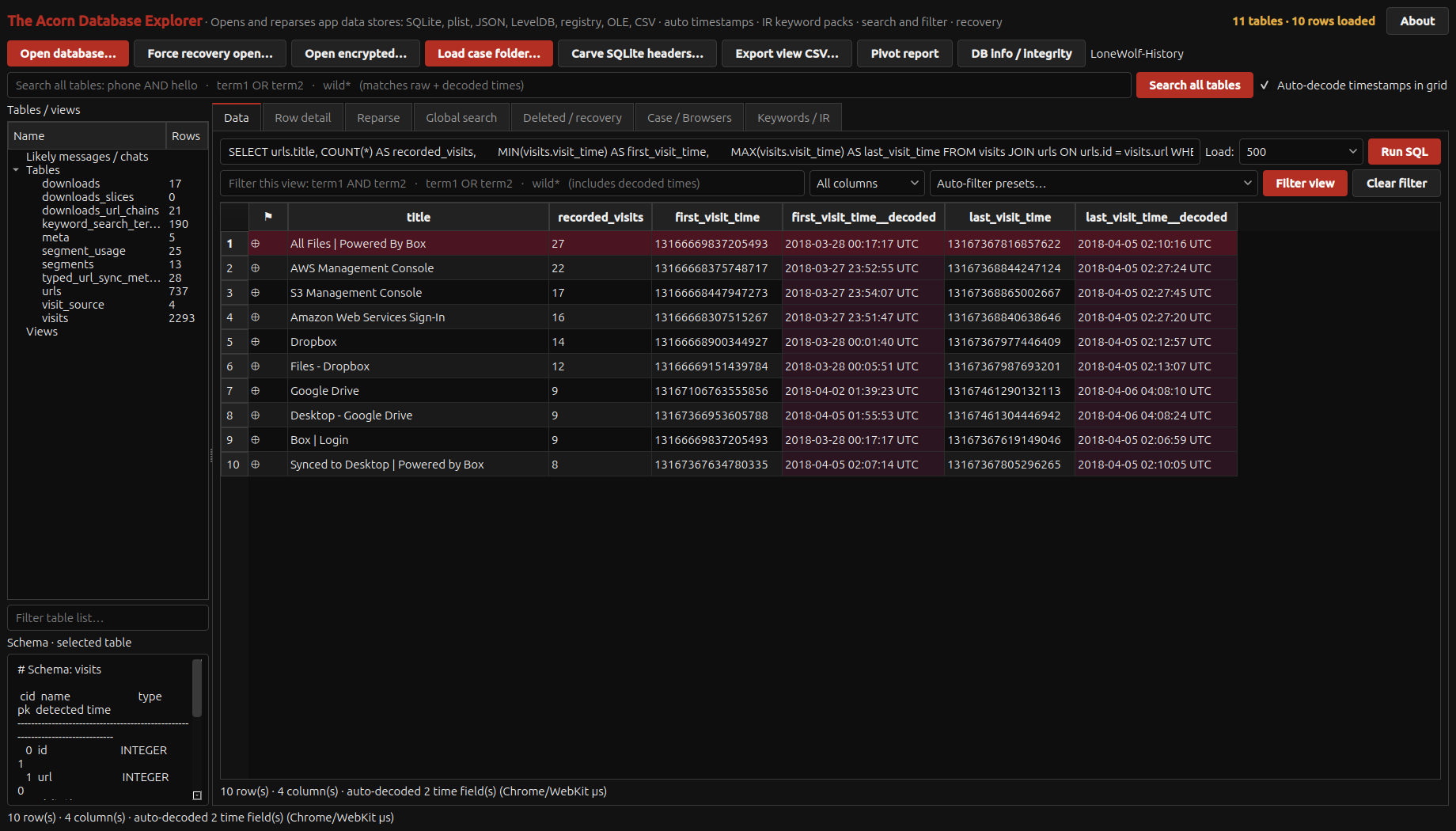
Browsing History: distinguish a visit, search and download
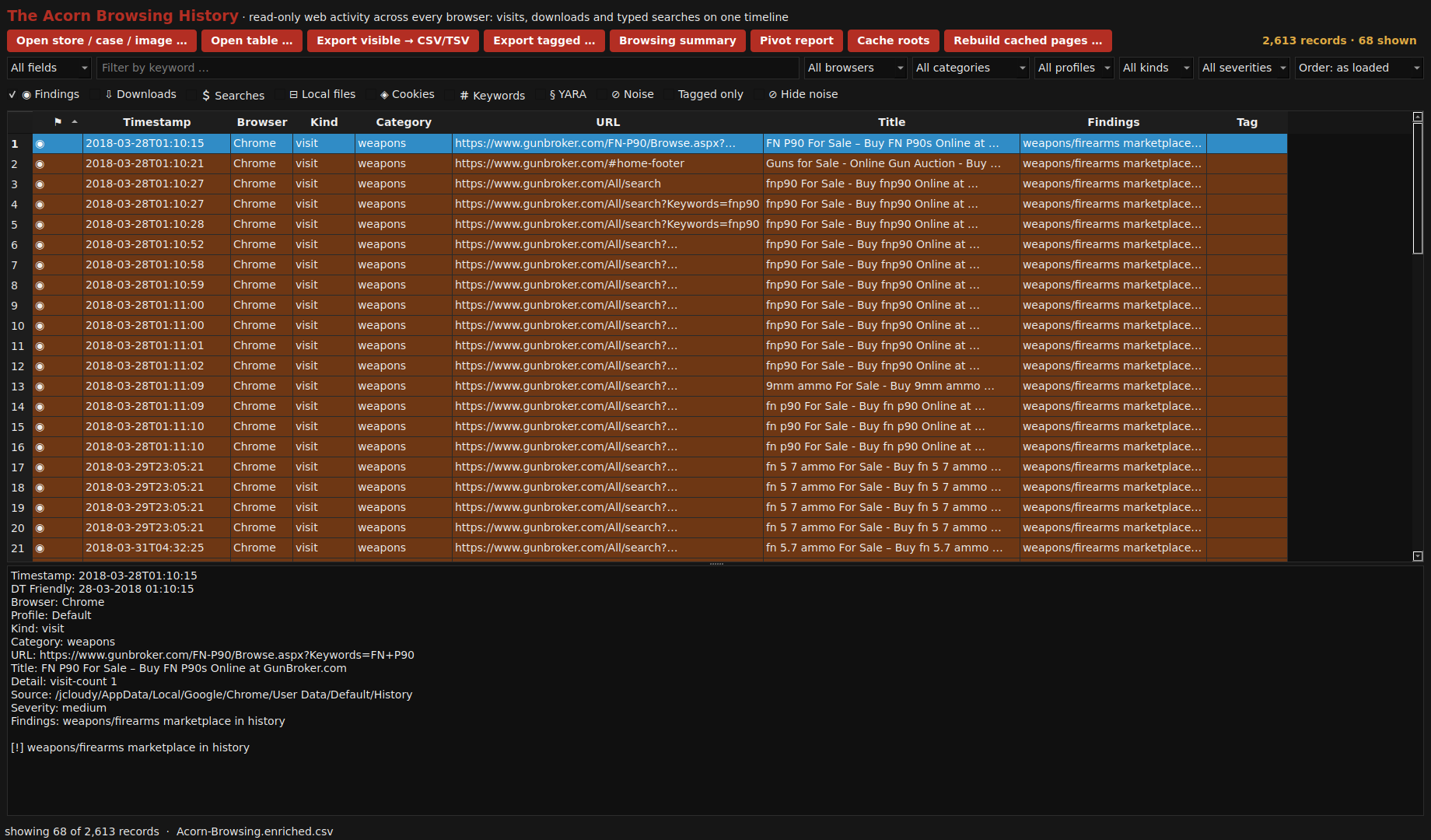
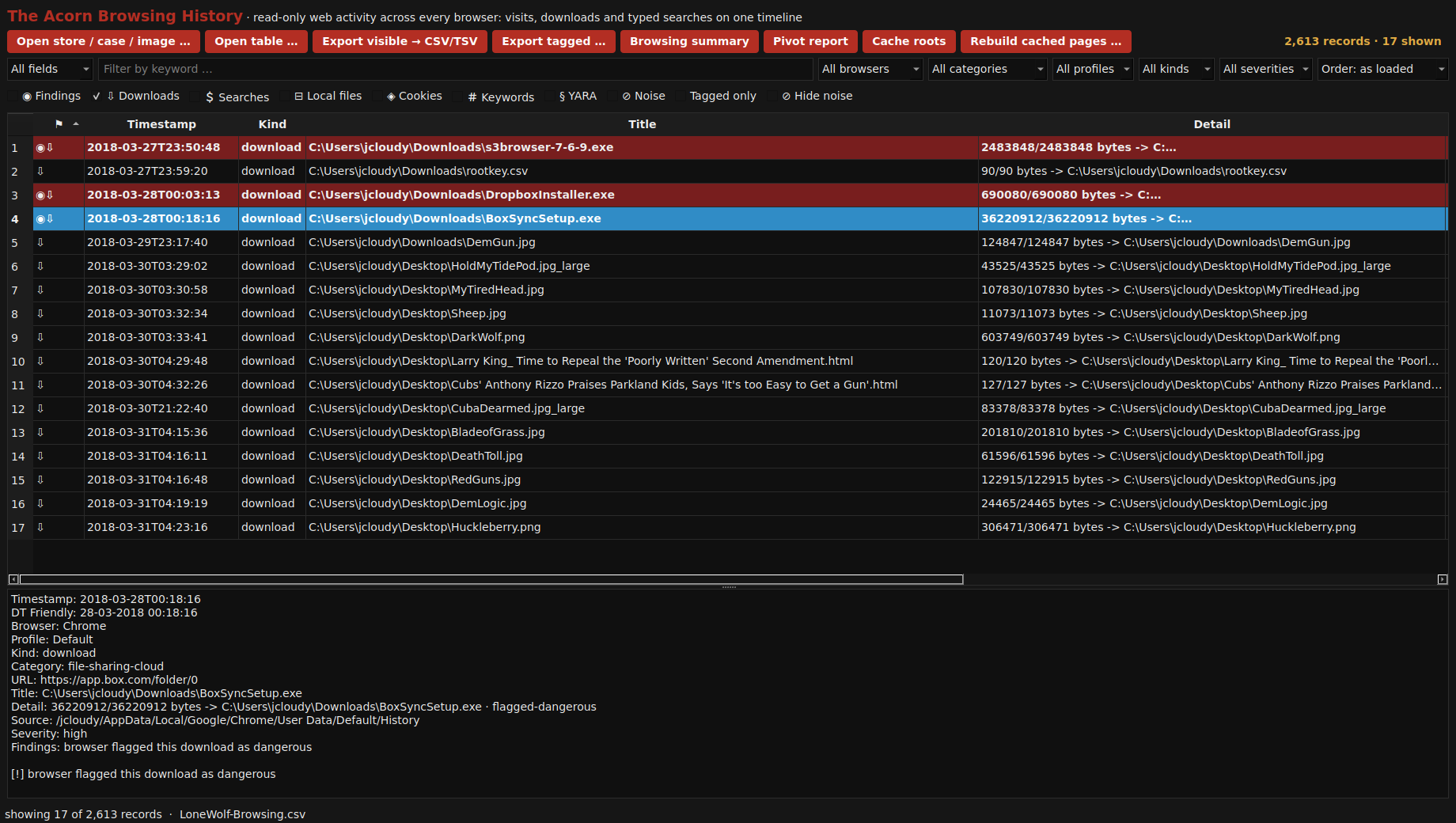
The Kind column separates visits, downloads and searches. Select a download to inspect its recorded target and byte count, and use browser or profile filters to keep the source in view.
In the public Lone Wolf scenario, the Findings filter narrows 2,613 browser records to 68 review leads. The selected row’s URL, title, source and rule appear together, so you can inspect why it was included.
The Downloads view selects 17 records from the same Lone Wolf collection. Cloud-tool downloads suggest services and related account records to examine next. A browser entry alone does not establish installation or a completed upload.
| App | What it helps you do | Sources and limits |
|---|---|---|
| Forensic Workbench | Bring files, parsed records, search, tags and time-based review into one case workspace. | Supported images, folders and collected artefacts. Coverage depends on the source adapter and selected parser; review reported exceptions and source records. |
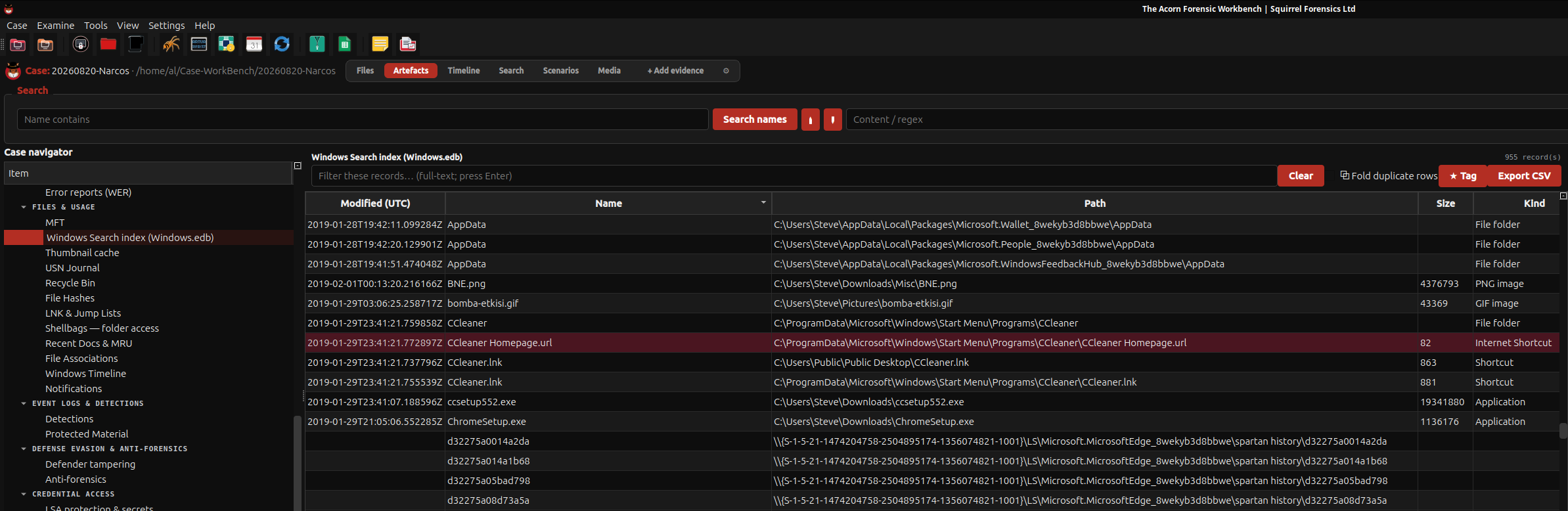
| Forensic Navigator | Browse and preview evidence, then open a focused tool without starting a full case-processing job. | Supported images, archives and mounted evidence. Recognition and preview are format-dependent; unsupported material remains an examination lead. |
| Data Explorer | Explore tables, search values, inspect timestamps and export selected records. | Supported SQLite, JSON, plist, delimited and other structured stores. Generic decoding is not application-level interpretation; damaged-store recovery uses a working copy. |
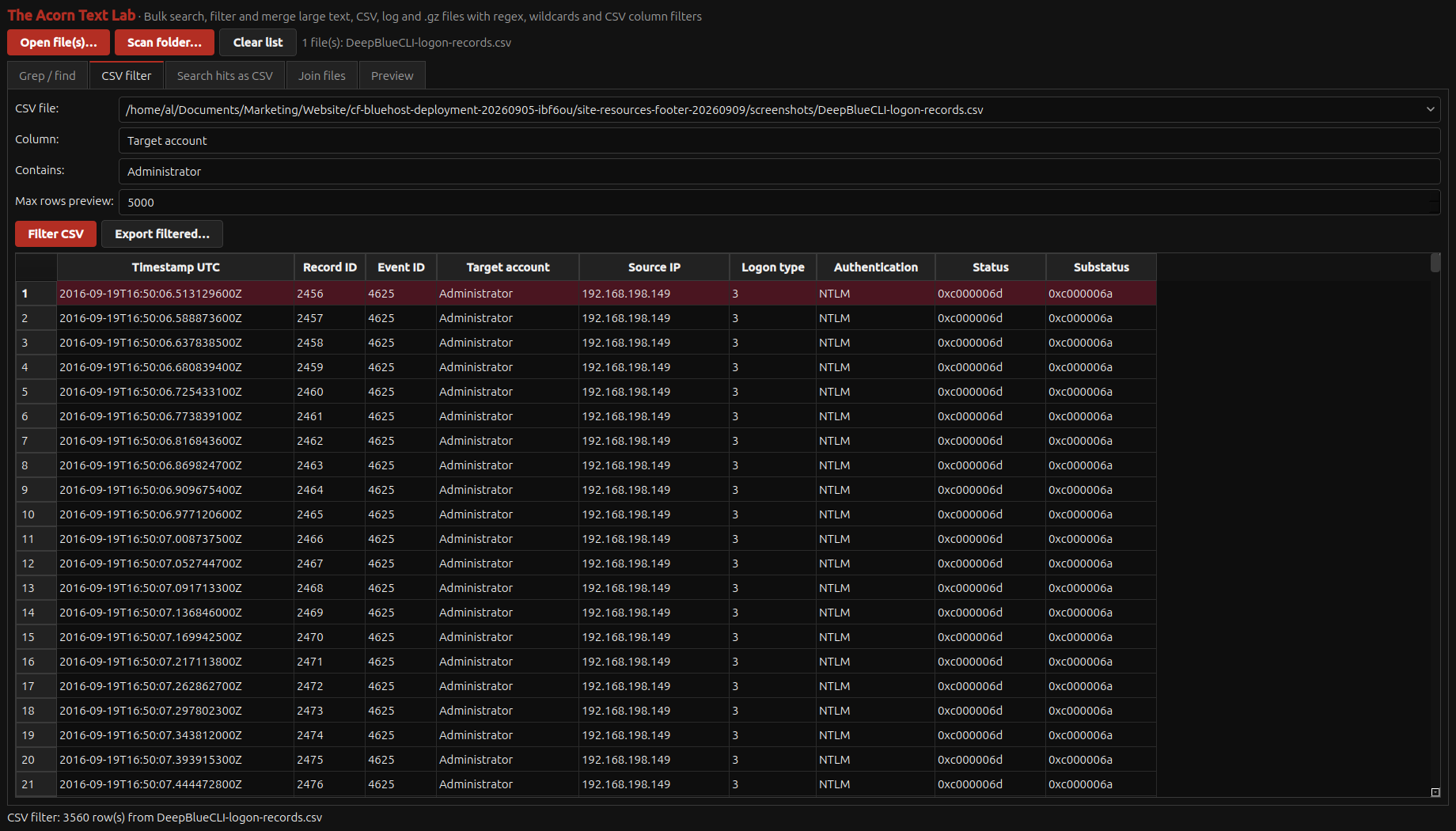
| Text Lab | Search large text sources with patterns and surrounding context, then export relevant hits. | Text, logs, CSV, TSV and supported compressed text. Encoding, compression and file size affect support; matches still need review. |
| Hash and Keyword Manager | Organise, validate and reuse consistent search and hash sets across examinations. | Examiner-controlled hash lists and keyword packs. A hit is a lead; the origin and purpose of each list must remain clear. |
| Browsing History | Separate visits, downloads and searches, then inspect the selected record’s source and details. | Supported offline browser stores and review tables. Visits, downloads and searches have different meanings; history may be synchronised or incomplete. |
| Forensic Browser | Capture a website’s observed state and retain useful capture records for later review. | Authorised live websites and supported browser records. Live capture contacts the site; it records that moment rather than proving a historic state. |
| Timeline Viewer | Review events from different sources in time order. | Supported timeline stores and exported records. Clock settings, time zones and source gaps require examiner interpretation. |
Computer artefacts, memory and incidents
Compare operating-system and application records to build and test a sequence of events.
SRUM Viewer: which applications moved the most data?
Open a supported SRUM database, use the NTFS image-extraction route or reopen a review table. When processing finds several databases, the viewer opens the largest result; it does not merge their records.
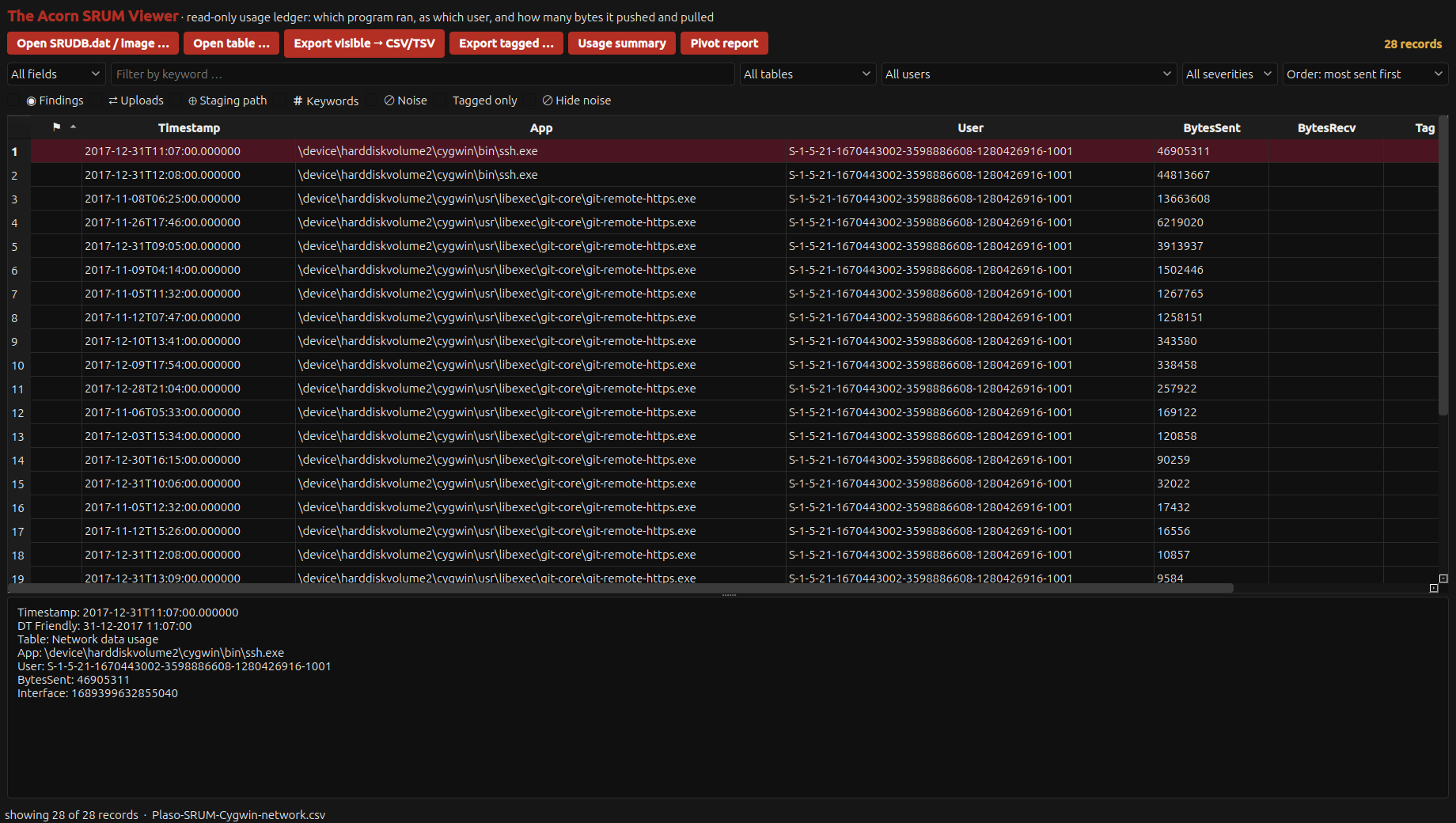
Compare the transfer counters. Filter network records, then sort by bytes sent or received. Uploads selects records with at least 50 MiB sent. Select a row to inspect its application path and user identifier; the count alone does not reveal the destination or transferred documents.
The two views below use 28 Cygwin network records from the public Plaso sample. Their source-clock dates were normalised from the decoded SRUM fields before import. The selected ssh.exe record contains 46,905,311 bytes sent; none of these records reaches the Uploads threshold.
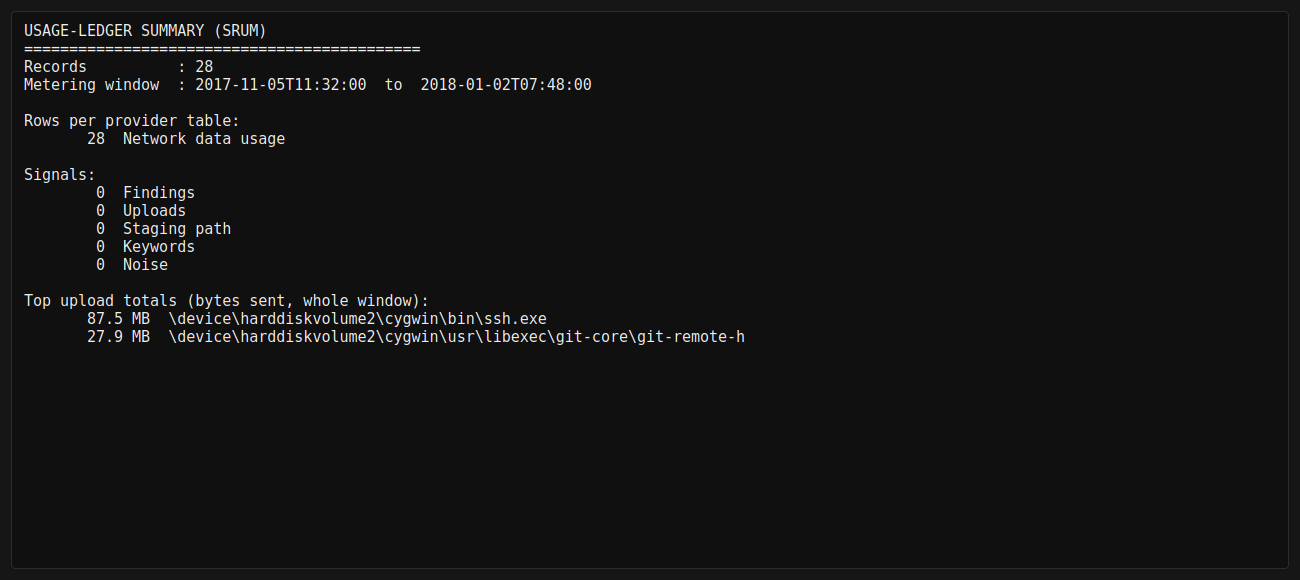
Read the summary scope. Usage summary totals every loaded row, including hidden ones. Staging path flags applications recorded in locations such as Temp or AppData; it does not locate staged documents. Compare these leads with relevant browser, application and network records.
This development build can leave dates blank for some SRUM sources. Check date, application and user coverage before building a timeline.
Event Log Viewer: examine the event behind the alert
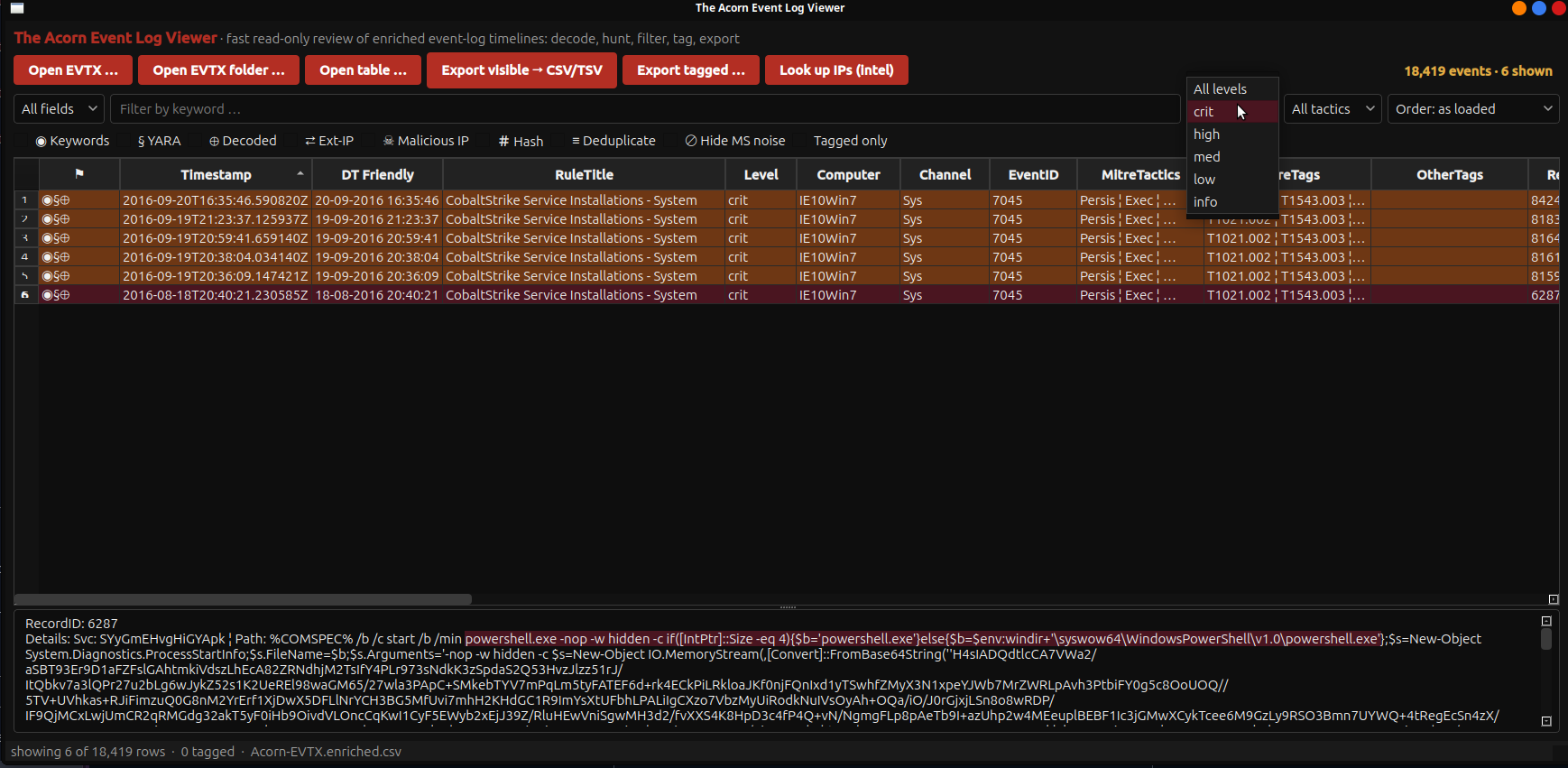
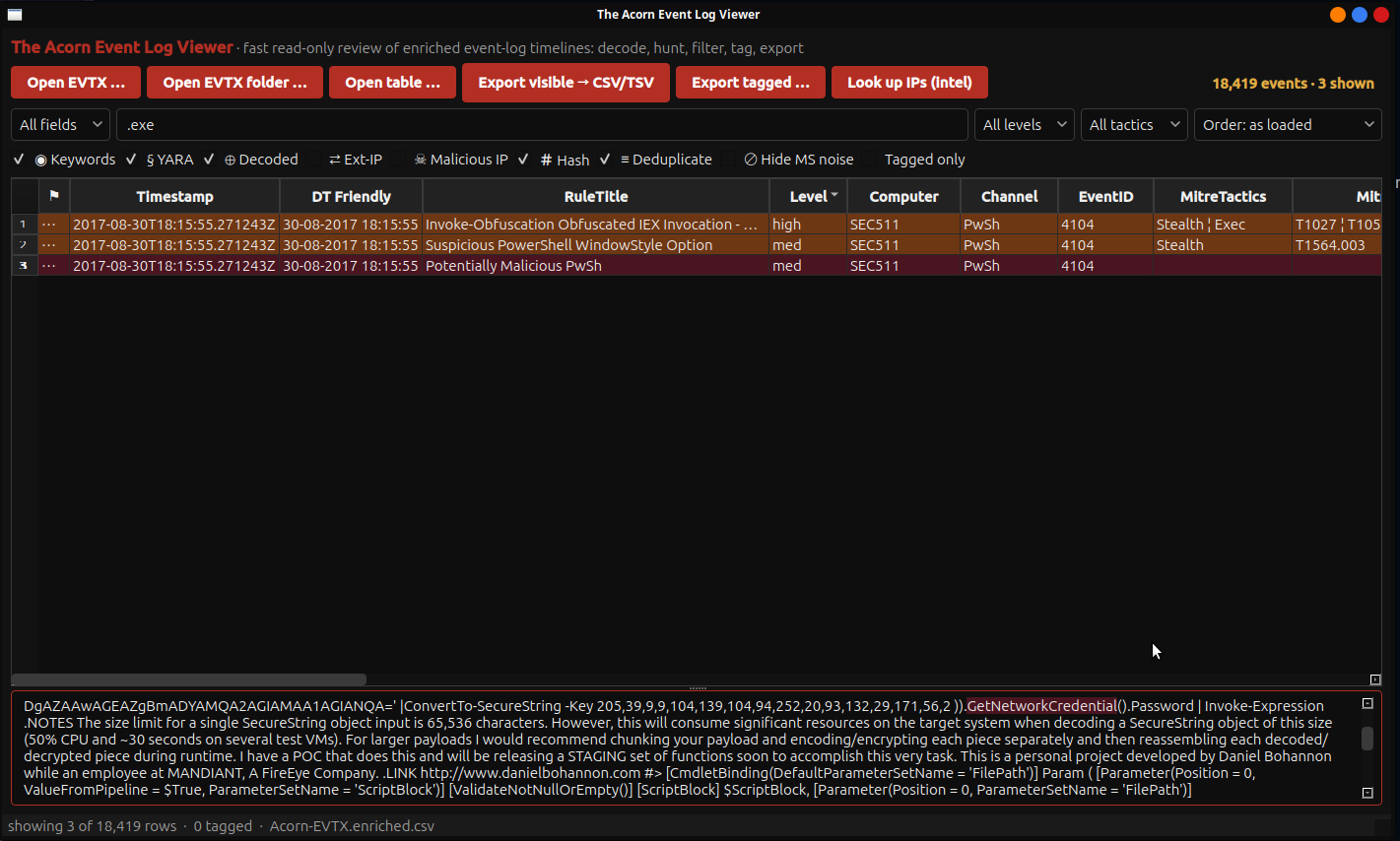
Open an EVTX file, event-log folder or review table. Filter by event type, text or decoded content, then inspect the selected event’s time, ID, computer and source. Encoded text can be shown in readable form alongside its record.
Tag useful rows and export them for comparison with surrounding events. A decoded script shows recorded content; check other evidence to establish what actually ran or completed.
Registry Analyser: place software and settings in context
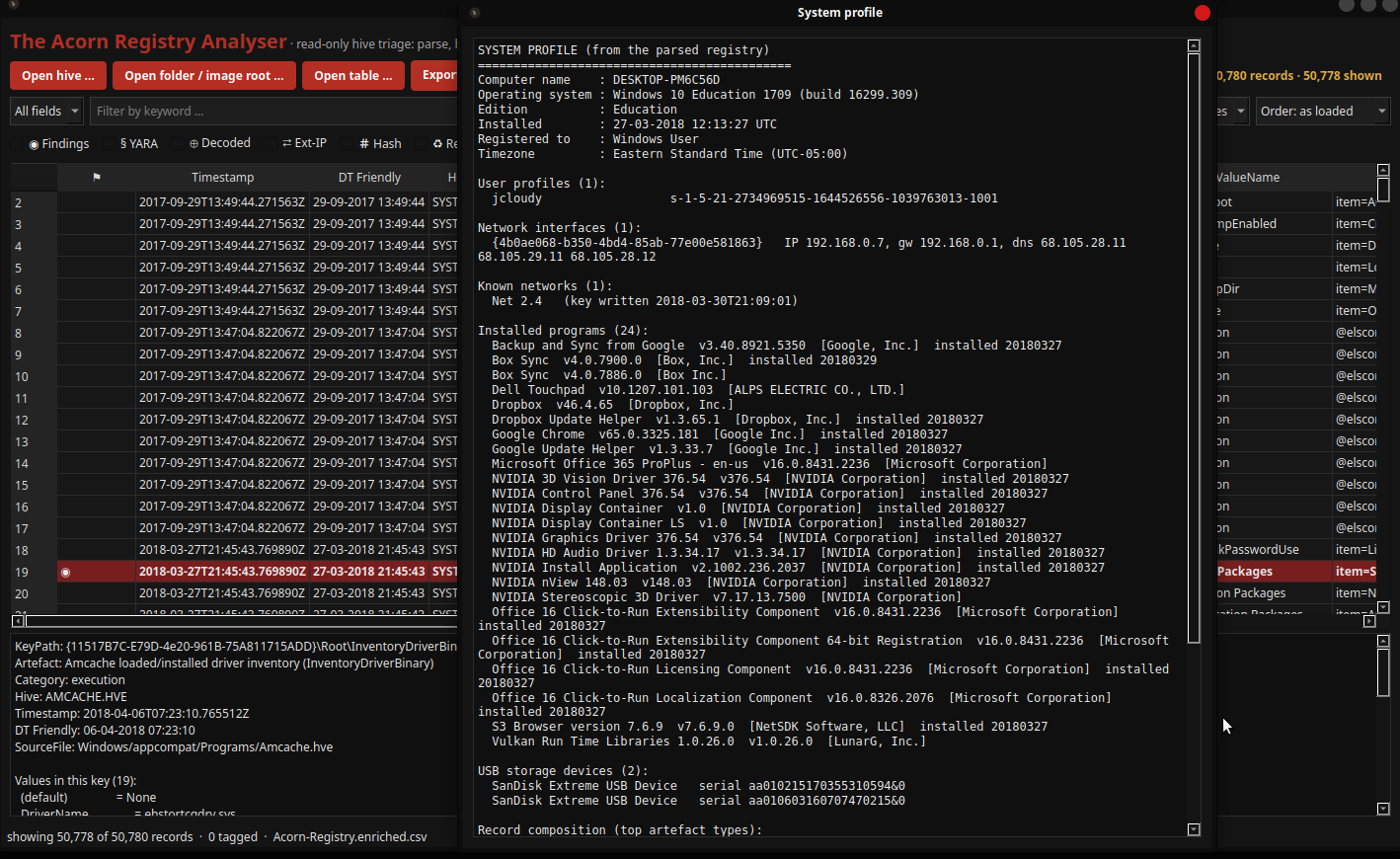
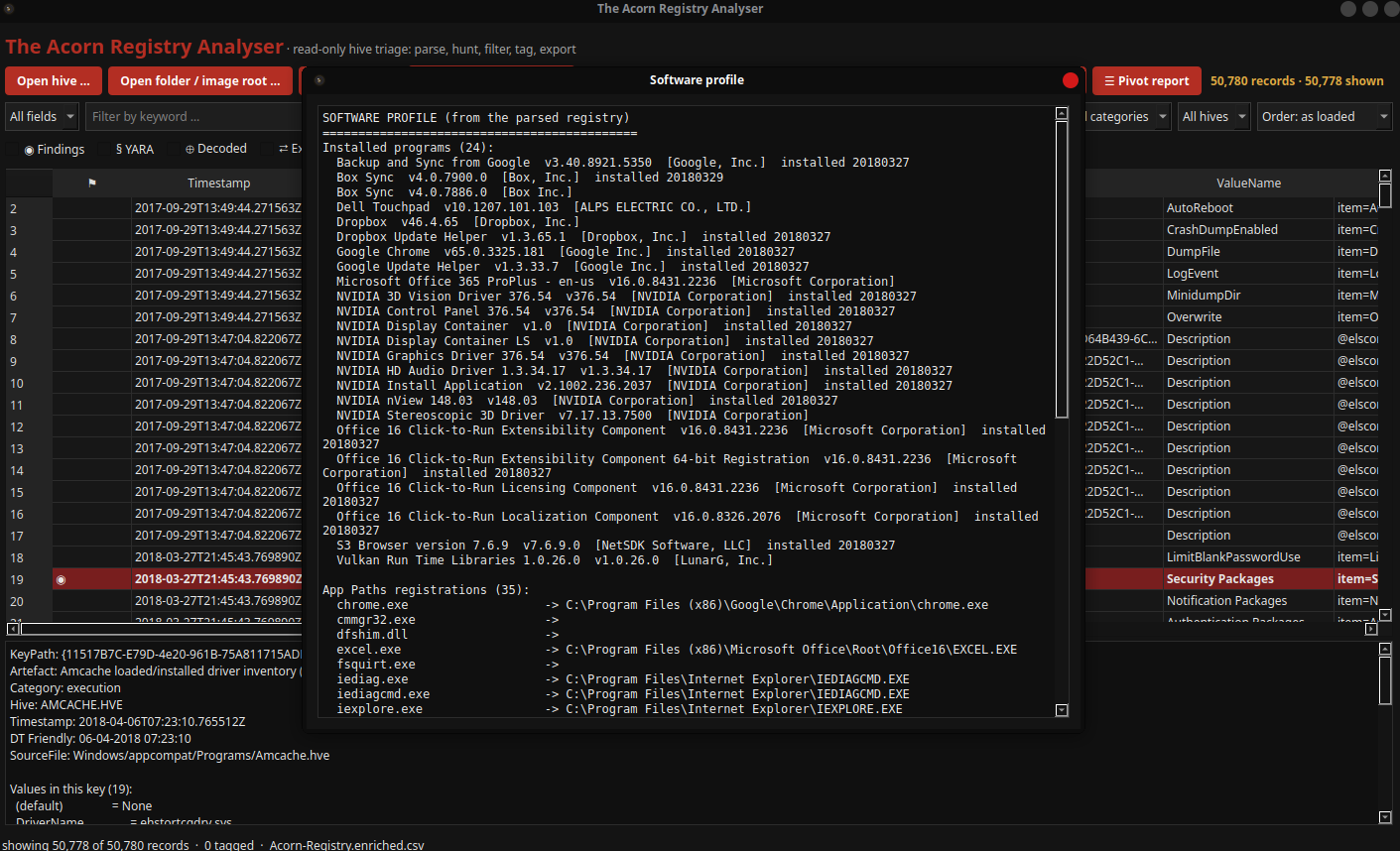
Use the summary to identify the system and user profiles, then examine software or persistence categories. Trace a selected result to its hive, key, value and explanation.
Registered software and auto-start settings help explain other artefacts. Their presence alone does not establish execution; compare them with application and event records.
USN Journal Viewer: follow retained file changes
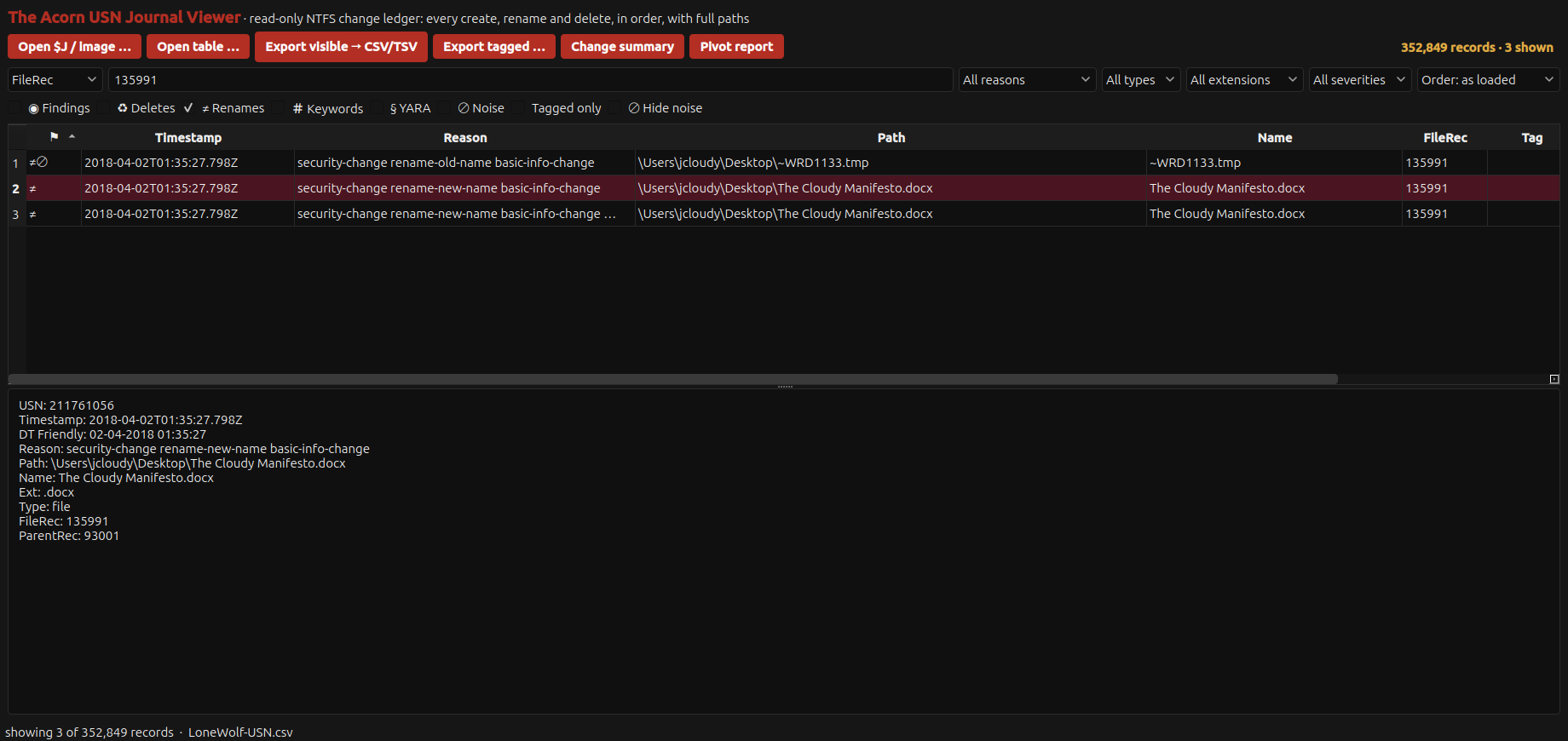
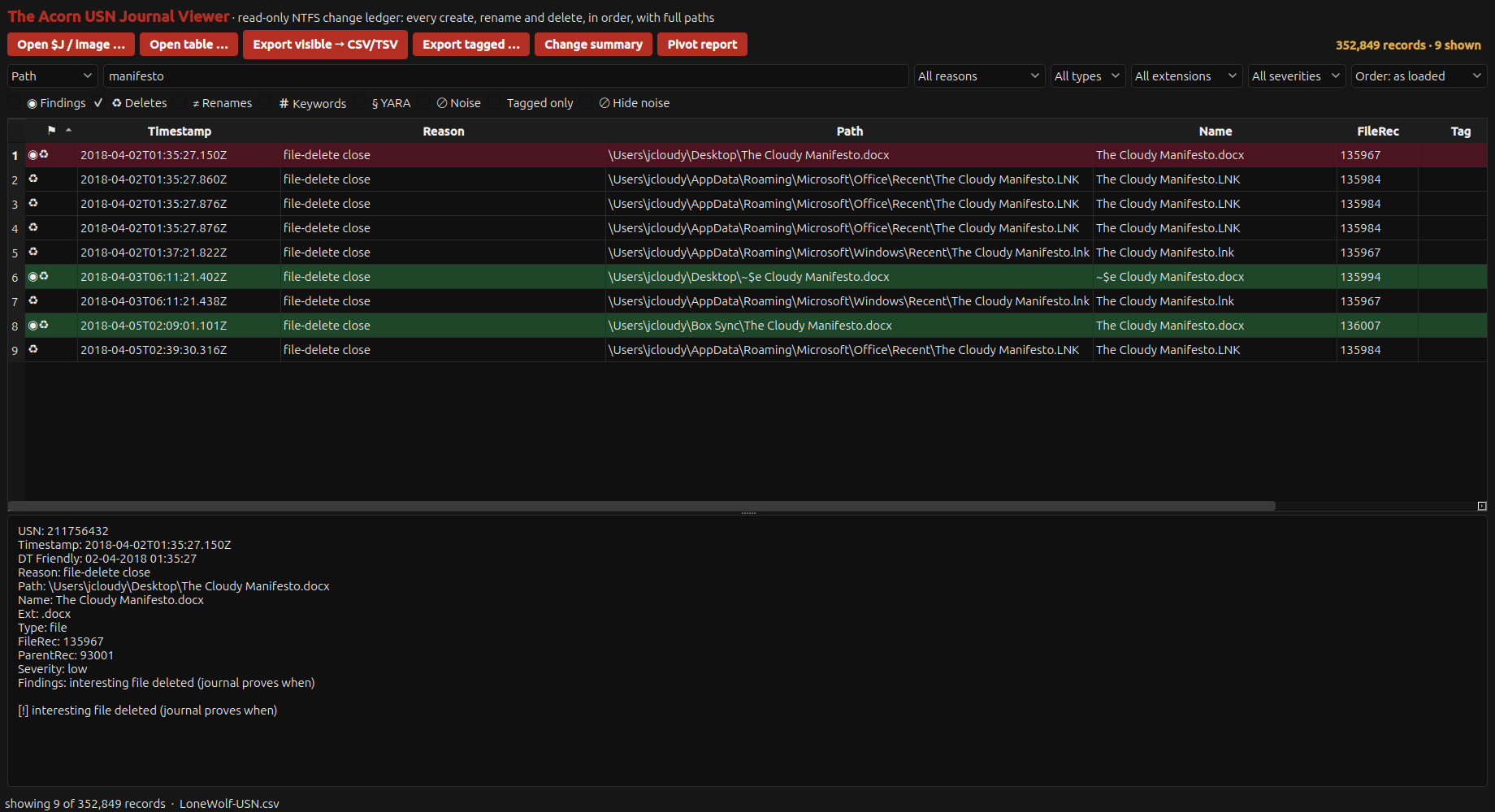
Compare timestamps, reason flags, names and file references. In the public Lone Wolf journal, reference 135991 connects a temporary filename with its document name. Related deletion records show what survived in the journal after files or shortcuts were removed.
Retained deletion records may outlast a file, but do not contain its deleted content or identify who removed it. Check the recorded clock and surrounding activity. Journal rollover and missing MFT records can limit history and full-path reconstruction.
| App | What it helps you do | Sources and limits |
|---|---|---|
| Artefact Lab | Produce focused tables and triage reports for execution, accounts, devices and application traces. | Supported host artefacts or mounted system roots. A parser result needs its source and companion files; operating-system versions affect coverage. |
| Registry Analyser | Review registry records through a dedicated read-only interface. | Windows hives, hive folders and supported image sources. Interpretation varies with hive integrity, accompanying logs and the artefact catalogue. |
| Event Log Viewer | Open EVTX files or folders, inspect decoded content, filter relevant events and export tagged records. | EVTX files or folders; CSV, TSV and JSONL review tables. Keep the original event and surrounding records with any decoded or tagged result. |
| MFT Viewer | Review names, paths and timestamps from the Master File Table, the Windows filesystem’s file index. | NTFS file records, supported images and review tables. Filesystem metadata alone does not establish who created, opened or copied a file. |
| USN Journal Viewer | Review recorded file changes and their times, including creation, deletion and renaming. | Windows file-change journals and companion file records. Journal rollover and missing companions can limit names and historical coverage. |
| SRUM Viewer | Compare application transfer counters, filter larger records and retain useful rows for review. | SRUM databases, supported NTFS images and review tables. Timestamps or application identifiers may be absent. Summary totals use the entire loaded table. |
| Shortcut Viewer | Inspect target paths, references and related metadata. | Windows shortcuts, Jump Lists and supported image sources. A shortcut or recent-item record does not by itself prove a document was read. |
| Plist Viewer | Review structured settings and application values in a readable table. | XML or binary Apple property lists and supported image sources. Key meanings depend on the originating application and version. |
| Identity Lab | Examine account records and selected protected-secret material with the required keys or credentials. | Supported offline account stores. Some records need companion files or keys; the tool does not provide a universal password bypass. |
| Sticky Notes Decoder | Extract note records into reviewable text or structured outputs. | Supported desktop note stores from Windows, macOS and Linux. Store versions and synchronisation vary; one missing local note is not proof that it never existed. |
| Malware Triage | Inspect file identity, strings, structure and local indicators without executing the specimen. | Suspect executables and other supported files. Static observations are not a conclusive malware verdict; packing and malformed files can limit analysis. |
| Document Threat Lab | Inspect embedded content and indicators, preserving extracted components as derived material. | Supported Office, PDF and RTF files. Encrypted or unsupported variants may limit coverage; the document is not executed. |
| Quarantine Recovery Lab | Retain and decode candidate quarantined samples into controlled output with hashes and reports. | Supported antivirus quarantine stores and related logs. Vendor and version support vary. Recovered samples need isolated handling; do not execute them on the examination workstation. |
| Memory Workbench | Review processes, connections, strings and selected artefacts from captured memory. | Supported memory images. Analysis depends on the captured operating-system build, image quality and suitable profiles. |
Network and remote investigation
Review supplied captures and logs offline, or use an authorised live collection workflow. Online searches and enrichment contact the selected external services.
| App | What it helps you do | Sources and limits |
|---|---|---|
| Packet and Network Workbenches | Review endpoints, conversations, requests and candidate transferred objects in tables and reports. | Supported packet-capture files. Encryption, missing packets and capture position constrain what is observable; no contact with observed hosts is needed for offline review. |
| Net Sentinel | Capture live traffic and surface network indicators for supervised review. | An authorised laboratory or incident-response network. This tool performs live network work; use the packet viewers for offline captures. |
| Unified Log Analyser | Review Microsoft 365 audit exports with timeline and optional indicator context. | Microsoft 365 Unified Audit Log exports. Coverage follows the fields and period collected; optional enrichment contacts online services. |
| Public IP Extractor | Extract candidate public IP addresses into a reviewable list, with optional enrichment. | Local files and folders. Check matches in context. Online lookups submit the selected indicator to the chosen provider. |
| OSINT Searcher | Organise public-source enquiries and provider results for review. | Authorised search terms and indicators. Provider access, accounts and terms vary; online enquiries are deliberate external disclosures. |
| Remote Response | Prepare bounded collection outputs with supporting records for later examination. | Authorised response material and supported collection packages. Collection depends on target access and environment; cloud sources have separate coverage. |
Media, phones and location records
Choose a viewer or collector for the available media, device access or backup format. The table distinguishes collection from analysis.
GeoExif Mapper: compare locations stored in photographs
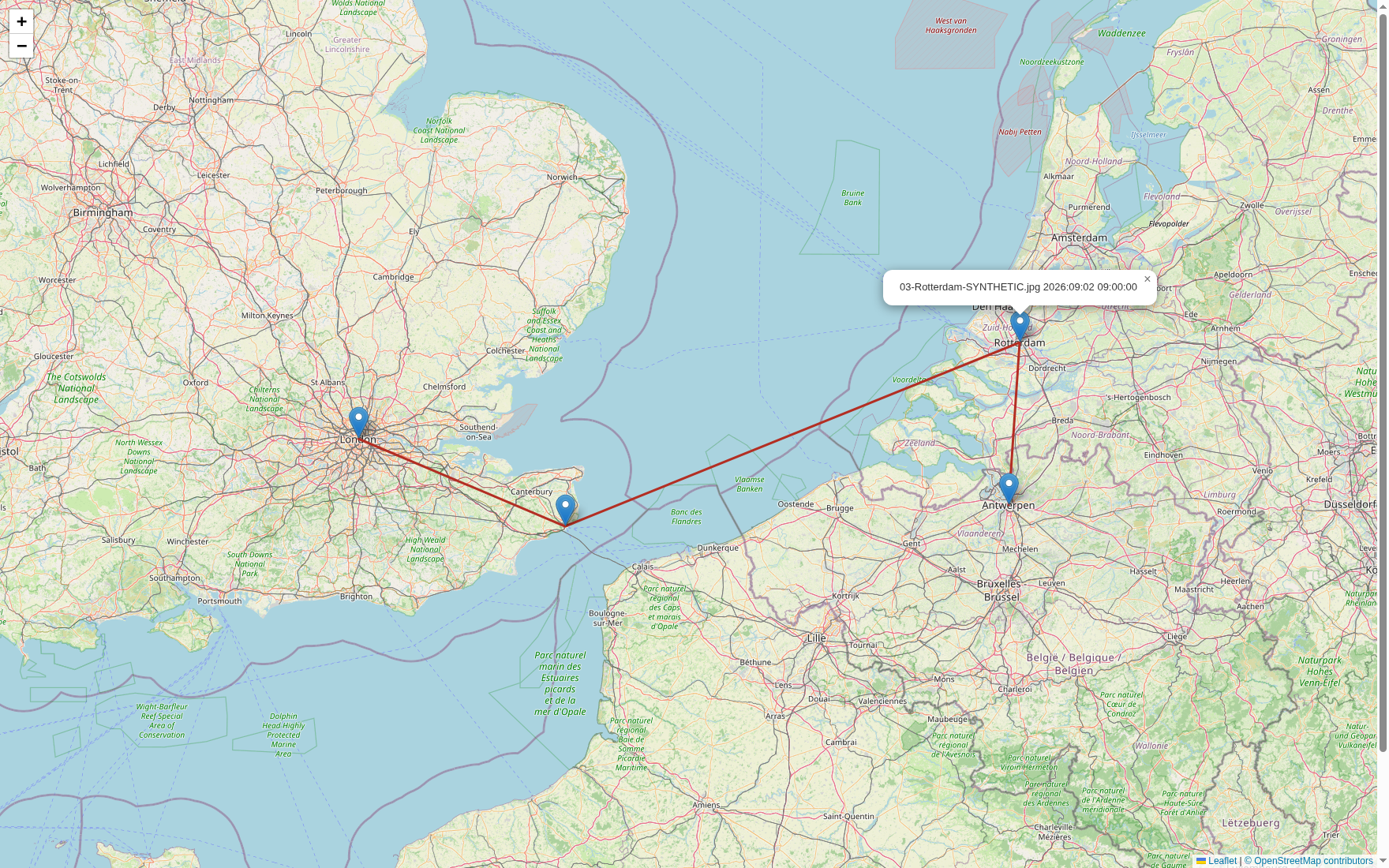
Read GPS positions and capture times from supported image metadata, then compare the points on the map. Select a marker to see its source filename and recorded time.
This JoeBloggs exercise assigns four training images to real locations in London, Dover, Rotterdam and Antwerp. The straight lines join the records in time order; they do not establish a route travelled or prove a person was present.
| App | What it helps you do | Sources and limits |
|---|---|---|
| Audiovisual Analyser | Review metadata, waveforms, spectrograms, frame contact sheets and controlled derivatives. | Supported audio, video and image files. Codec support varies; silence, gaps or variable frame rate are leads rather than proof of editing. |
| GeoExif Mapper | Create location tables, maps and distance observations from recorded metadata. | Supported photographs and media carrying location metadata. Missing, edited or copied coordinates limit interpretation; metadata does not prove a person’s location. |
| Cell Site Analyser | Arrange supplied records chronologically and map their location relationships. | Supported call-detail exports and optional mast tables. A plotted mast or sector does not pinpoint a handset; source and radio interpretation matter. |
| Android Collector | Guide logical collection and preserve a structured inventory with hashes. | USB-connected Android devices with authorised debugging access. Not physical extraction, lock bypass or universal parsing of the acquired data. |
| Apple Mobile Lab | Guide intake and supported parser hand-off, with access to underlying databases. | Lawfully obtained backups and extraction folders. A guided review workspace; it does not provide comprehensive native iOS extraction or parsing. |
| Sensitive Imagery Lead Finder | Flag relevant filenames, paths and metadata for controlled review. | Supported metadata and text records. Image-pixel classification is disabled in this preview; flags do not determine a file’s legality. |
Notes, guidance and workstation checks
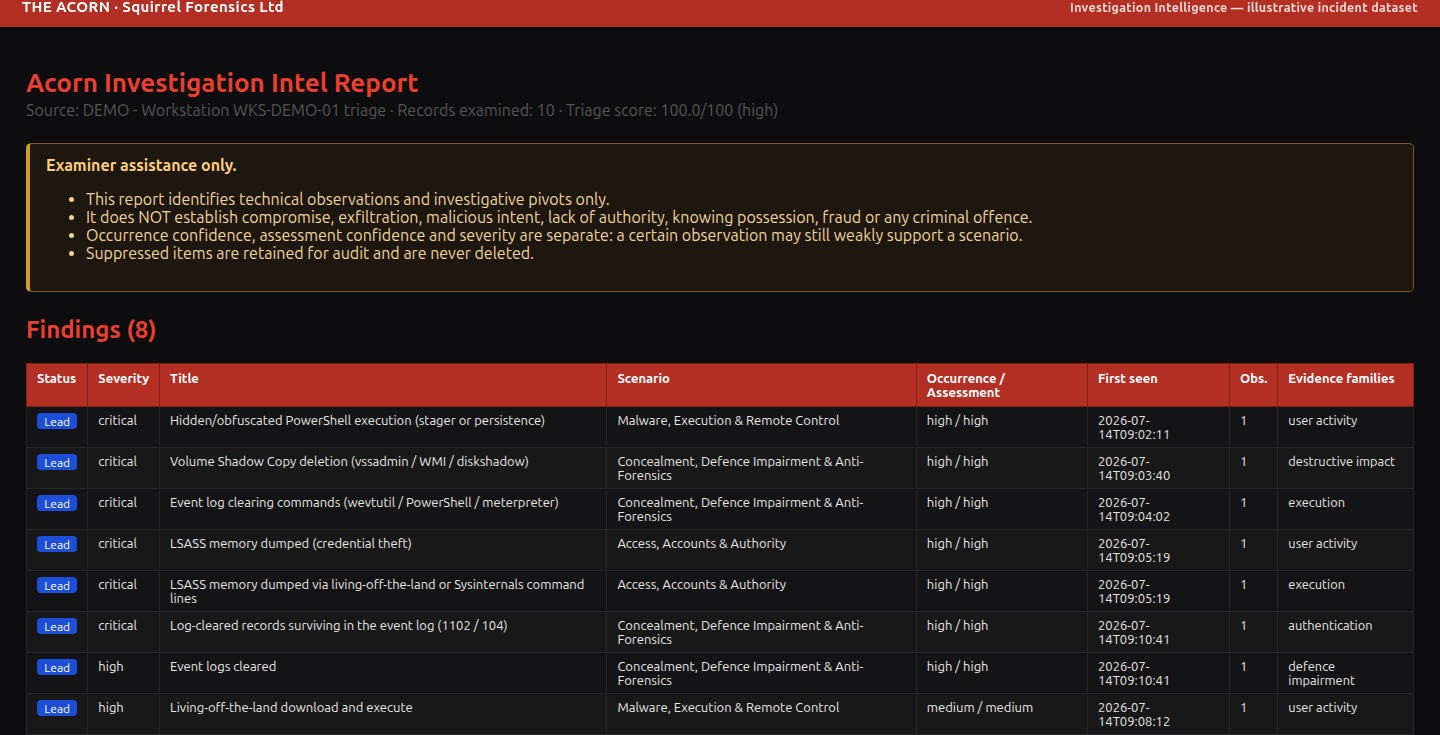
Record observations, supporting references and examination decisions. Guidance and workstation checks help prepare the workflow.
| App | What it helps you do | Sources and limits |
|---|---|---|
| Case Notes | Keep a working notebook and export case notes for review. | Examiner notes, images and attachments. Review exported notes for accuracy, relevance and disclosure before sharing them. |
| Voice Recorder | Record observations and optionally prepare a transcript for review. | Authorised local audio notes. Transcription needs a supported installed model; retain and check the original recording. |
| Workflow Coach | Follow clear checklists and open the relevant Acorn tools. | The examination task and selected workflow. Guidance supports trained judgement; it does not validate a case or replace a method. |
| Artefact Guide | Find definitions, common locations, caveats and careful reporting language. | Forensic terms and artefact questions. Reference content is guidance; verify relevance to the actual system and case. |
| Capability Tools | Inspect file type, named data streams, byte randomness and related properties. | Files and filesystem records. These checks describe observable properties; recognised signatures do not establish complete format support. |
| Hardware Readiness | Report processor, memory, storage and component readiness before demanding work. | The local examination workstation. Checks the local configuration; device compatibility and expected workload still need assessment. |
| OS Guard | Review update and configuration posture around a controlled forensic environment. | The Acorn workstation’s configuration. Configuration checks support system maintenance; they do not certify the workstation as secure. |
Check and record your findings
Retain source references, settings and useful exports. Verify significant findings against the underlying material, and record gaps or conflicting observations.
For the terms used in this guide, see the digital forensics glossary. The evidence artefact guide explains how common records can help an investigation.
Demonstrations
Discuss The Acorn with Squirrel Forensics
Ask about demonstrations, supported sources and current release details at SQFR.uk. For an independent examination of your evidence, contact Compute Forensics.